A Salesforce deployment becomes harder to manage when it depends on one person’s terminal history. Which commit was deployed? Were tests run against the changes that actually reached the sandbox? Did a timeout mean the release failed, or did the CLI simply stop waiting?
In our first Salesforce deployment from Linux, we prepared the CLI, authenticated to an org, and deployed a small Apex project. This article takes that project into GitHub Actions, with a repeatable path from a pull request to a verified sandbox release.
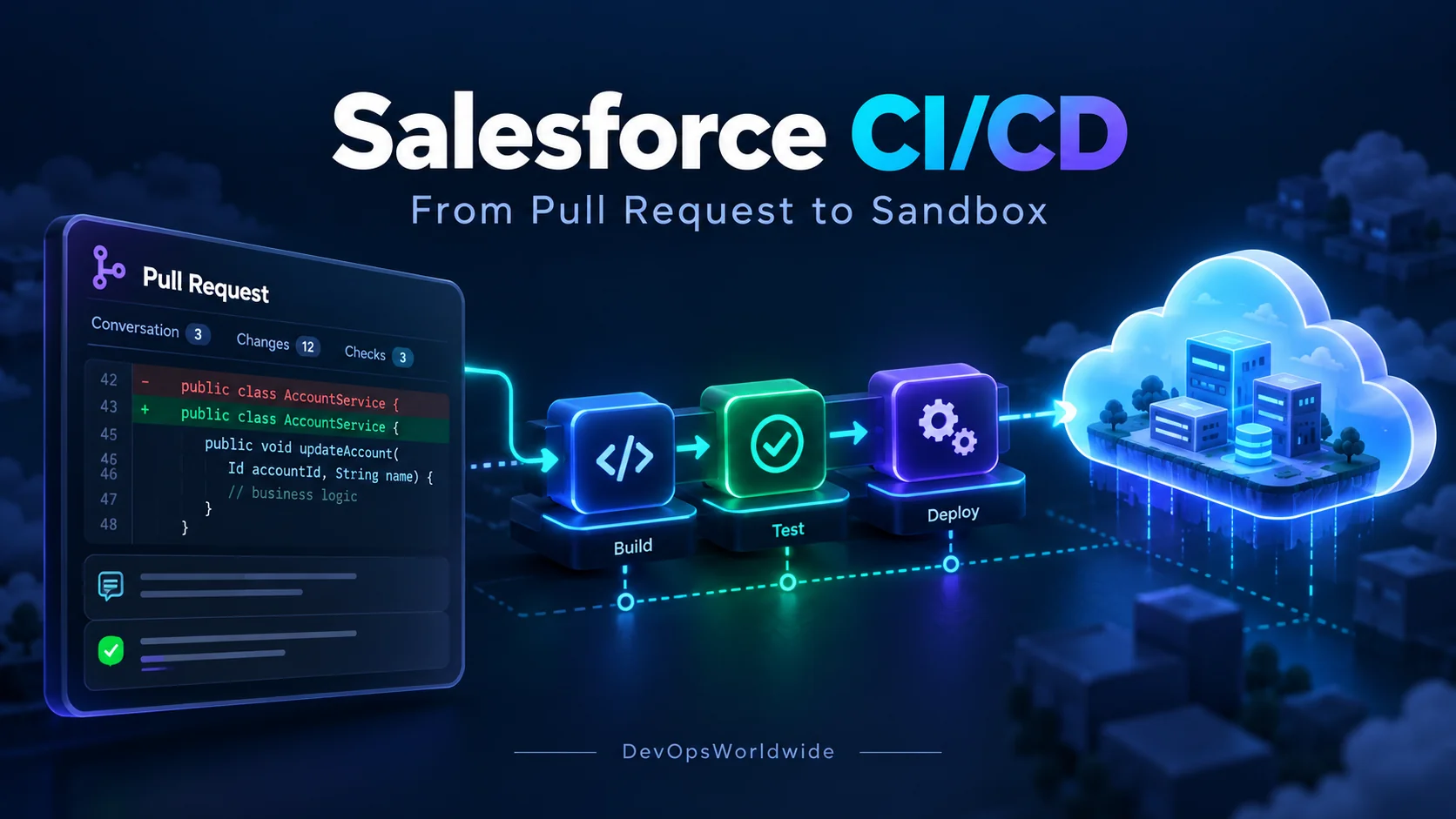
The goal is a small pipeline that you can explain and inspect. A pull request runs a dry run with tests. A merge triggers a fresh validation of the merge commit, followed by deployment and a smoke check.
Verification status: the practice project has passed local shell syntax, workflow YAML, and metadata-version checks. Authentication, Apex compilation, test execution, and deployment have not yet been run against a Salesforce sandbox. The walkthrough describes expected results; it does not present them as completed runs.
What we are building
Feature branch -> Pull request -> Review + sandbox dry run
                                      |
                                      v
                              Merge into main
                                      |
                                      v
                         Revalidate the merge commit
                                      |
                                      v
                           Deploy to the sandbox
                                      |
                                      v
                        Smoke check + release evidence
Salesforce continues to host and execute the application. An ephemeral GitHub-hosted Linux runner installs the Salesforce CLI and sends metadata to the org.
The companion Devopsworldwide_salesforce project contains the example. It is currently private and requires repository access. This blog lives in the separate DevOpsWorldwide website repository; its publishing workflow is not the Salesforce deployment workflow.
The initial project is on codex/sprint-1-foundation. The examples below assume you have access to that repository, or have prepared an equivalent project in your own repository. Publishing a public download or making the practice repository public is a separate release decision.
1. Start with a small, explicit deployment
The project contains these files:
.github/workflows/salesforce.yml
force-app/main/default/classes/
  DeploymentGreeting.cls
  DeploymentGreeting.cls-meta.xml
  DeploymentGreetingTest.cls
  DeploymentGreetingTest.cls-meta.xml
manifest/package.xml
scripts/release.sh
scripts/smoke.apex
sfdx-project.json
The Apex class returns a greeting and handles missing names:
public with sharing class DeploymentGreeting {
    public static String greet(String name) {
        if (String.isBlank(name)) {
            return 'Hello, Salesforce!';
        }
        return 'Hello, ' + name.trim() + '!';
    }
}
Its tests check a trimmed name, a null value, and a blank string. No customer records or sample business data are required. The explicit manifest includes only DeploymentGreeting and DeploymentGreetingTest.
Before using the example, check whether those class names already exist in your sandbox. A deployment can replace matching metadata. Use an isolated practice org, or rename both classes and update their references consistently.
The foundation uses API version 65.0. Confirm that the target supports it. Keep the version aligned in sfdx-project.json, both .cls-meta.xml files, and manifest/package.xml.
2. Set up an identity for the pipeline
Use a dedicated Salesforce deployment user and an External Client App configured for JWT bearer authentication. The administrator uploads the public signing certificate and pre-authorizes the deployment user. The matching private key belongs in the secret store.
Follow the Salesforce External Client App guide for the current setup screens and policies. Review the user’s license, API access, metadata permissions, and Apex permissions for the operations in this lab. Review certificate expiry and token/session policies too.
In the practice repository, open Settings → Environments and create salesforce-sandbox.
| Kind | Name | Value |
|---|---|---|
| Secret | SF_CLIENT_ID |
External Client App Consumer Key |
| Secret | SF_USERNAME |
Dedicated sandbox deployment username |
| Secret | SF_JWT_KEY |
Complete PEM private key |
| Variable | SF_INSTANCE_URL |
Exact HTTPS sandbox My Domain login URL |
| Variable | SF_EXPECTED_ORG_ID |
Expected 15- or 18-character sandbox org ID |
The private key must not appear in Git, issue comments, chat, screenshots, or uploaded build artifacts. Configure it through GitHub’s environment-secret interface. Never enable shell tracing around authentication.
The release script writes the key into a restricted temporary directory, isolates the CLI’s home directory, and removes that directory on normal exit. This example is intended for disposable GitHub-hosted runners. A persistent shared runner needs additional isolation and cleanup design.
3. Decide which code is trusted to receive credentials
A pull request can change more than Apex. It can modify the release script or the workflow that receives secrets. A passing code review therefore needs to include those files.
This lab accepts same-repository pull requests from trusted collaborators. Fork pull requests are skipped, and the workflow does not use pull_request_target. A skipped fork job is not successful Salesforce validation. This workflow is not a solution for running arbitrary public contributions with org credentials.
Where your GitHub plan and repository visibility support environment reviewers, require a trusted reviewer before releasing environment secrets. The reviewer should inspect the exact commit and the code that will run with those secrets. If that control is unavailable, restrict the lab to trusted writers and do not treat the environment name itself as a security boundary.
GitHub documents these risks in its secure workflow guidance. The companion workflow also limits its GitHub token to reading repository contents and disables persisted checkout credentials.
Protect main with pull requests and the Validate or deploy sandbox status check. Require review, dismiss stale approvals when appropriate, and require the branch to be current with its base. Select the actual check name shown by GitHub after its first run; a check name alone is not a configured merge rule. If branch protection is unavailable on your plan, a failed run does not technically prevent an authorized writer from merging.
4. Understand the workflow triggers
The foundation workflow responds to two events:
on:
  pull_request:
    branches: [main]
  push:
    branches: [main]

permissions:
  contents: read

concurrency:
  group: salesforce-practice-sandbox
  cancel-in-progress: false
A pull request selects validation mode. A push to main selects deployment mode, which first validates and then deploys the same checkout.
The job uses ubuntu-24.04, Node 24, and Salesforce CLI 2.152.14. Checkout and Node setup actions are pinned to commit SHAs in the repository. Record the actual CLI version in each run and review dependency changes before upgrading it. Pinning the CLI package version does not fully freeze its transitive npm dependencies.
The shared concurrency group avoids overlapping workflow jobs against this sandbox. It does not promise to deploy every queued commit: GitHub may replace an older pending run with a newer one. This is a latest-state practice pipeline, not a release queue with guaranteed processing of every commit.
The initial foundation branch does not trigger these deployment events. Configure credentials and review the project before creating and pushing main from it: that push activates the first validation and sandbox deployment. Once main exists, configure its protections and use feature branches for changes.
5. Verify the org before doing anything to it
The script authenticates with JWT, then queries the destination:
sf data query --target-org sprint-lab \
  --query 'SELECT Id, IsSandbox FROM Organization' --json
In the actual script, that output is captured privately rather than printed. The guard requires one returned org, IsSandbox equal to true, and an org ID matching SF_EXPECTED_ORG_ID. It compares the first 15 characters so either supported org-ID length can be configured.
An alias is only a label. Calling an alias sprint-lab does not prove that it refers to a sandbox. The explicit identity check prevents the lab script from continuing against production or a different sandbox.
The check also intentionally rejects Developer Edition orgs because they are not reported as sandboxes. Adapting the lab to another org type requires a deliberate change to that rule.
6. Run a dry run with Apex tests
The validation operation uses an explicit manifest and named test class:
sf project deploy start --target-org sprint-lab \
  --manifest manifest/package.xml \
  --test-level RunSpecifiedTests \
  --tests DeploymentGreetingTest \
  --dry-run --async --json
The dry run checks the proposed metadata without saving it. RunSpecifiedTests keeps this small exercise focused; larger applications need a test strategy that also covers interactions with existing features. See Salesforce’s deployment command reference.
The asynchronous command returns a deployment ID. The script polls that same job and requires a terminal successful result. It does not accept a queued or in-progress status as a pass. Salesforce describes job polling in the deployment report reference.
Apex tests do not replace static analysis. The current foundation does not yet include Salesforce Code Analyzer; adding a reviewed rule set is a remaining Sprint 1 task. Do not describe that check as present until it is configured and executed.
7. Prove that a bad change is blocked
Start from the reviewed main branch once the initial environment setup is complete:
git switch main
git pull --ff-only
git switch -c exercise/failing-greeting-test
In DeploymentGreetingTest.cls, change the expected greeting for the named-user assertion to an intentionally incorrect value. For example:
System.assertEquals(
    'Hello, incorrect expectation!',
    DeploymentGreeting.greet(' Linux deployer ')
);
Commit that change, push the branch, and open a pull request to main. Review the workflow and approve environment access only after checking the code.
The expected result is a failed Apex assertion during validation. The dry run should not save metadata, and the configured required check should block the merge. Capture the actual run and test result; do not substitute a screenshot of a YAML file for evidence that the control worked.
Restore the expected value to Hello, Linux deployer!, push a new commit, and repeat validation. The expected result is a passing check. Review the corrected change before merging.
8. Revalidate after merge, then deploy
A pull-request validation and the final merge commit can differ. The target branch may have changed, or the merge may combine work from another contributor. A green check on an earlier state is not evidence that the final merged state was tested.
The push workflow starts again from its own checkout, performs a new dry run, and only then submits the deployment. The deployment uses the same manifest and tests, with --dry-run omitted.
After successful deployment, the smoke script executes this assertion in the org:
System.assertEquals(
    'Hello, Linux deployer!',
    DeploymentGreeting.greet('Linux deployer')
);
That verifies a small piece of behavior in the destination. It does not establish end-user access, UI correctness, or integration readiness. A real application needs corresponding acceptance checks.
If the smoke check fails, the metadata deployment may already have succeeded. Treat the release as requiring investigation; do not claim it was automatically rolled back.
9. Keep useful evidence and handle unfinished jobs
For each exercise, retain the GitHub run URL, the executed commit SHA, validation and deployment job IDs, the final test outcome, and the smoke-check result.
The foundation records successful phase IDs and commit details in the GitHub job summary. Raw authentication and command JSON is not uploaded as an artifact. For failed tests, use the printed job ID to inspect Setup → Deployment Status in Salesforce.
A runner timeout can leave a Salesforce job still running. Before retrying, inspect that existing job. A retry is a new submission; it is not a way of resuming a wait. Similarly, cancelling GitHub Actions does not prove that Salesforce cancelled the operation.
| Symptom | Next check |
|---|---|
| Workflow does not start | Confirm the event targets main, not the foundation branch. |
| Job waits for approval | Review the environment’s protection rules and the exact commit. |
| Missing-variable error | Check the environment name and secret/variable spelling. |
| JWT login fails | Check app pre-authorization, username, certificate, key match, and expiry. |
| Org verification fails | Compare the expected ID and confirm the target is a sandbox. |
| Validation fails | Inspect component errors and Apex test results for that job ID. |
| Job stops waiting | Inspect the server-side status before submitting another deployment. |
| Deployment passes but smoke check fails | Investigate the deployed behavior; metadata may already be applied. |
What comes next
This sprint is complete when the deliberately broken test blocks a merge, the corrected change reaches the intended sandbox, and the release has verifiable evidence. Until those runs exist, this remains a prepared implementation rather than a proven pipeline.
The next article will address what happens after a successful release: identifying metadata drift, comparing an org with version-controlled source, and planning a safe recovery. Reverting Git alone does not change Salesforce, and deploying an older manifest does not automatically delete newly introduced components.
Thank you
Thank you to Nikita Raut, Salesforce Developer, for her contribution to this article and for sharing her knowledge with the DevOpsWorldwide community.